
Download Zipeg – Free, Secure Archive Viewer & Extractor for Windows & macOS
Overview
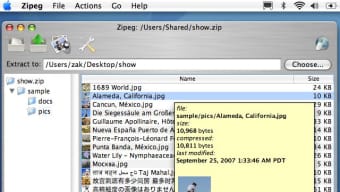
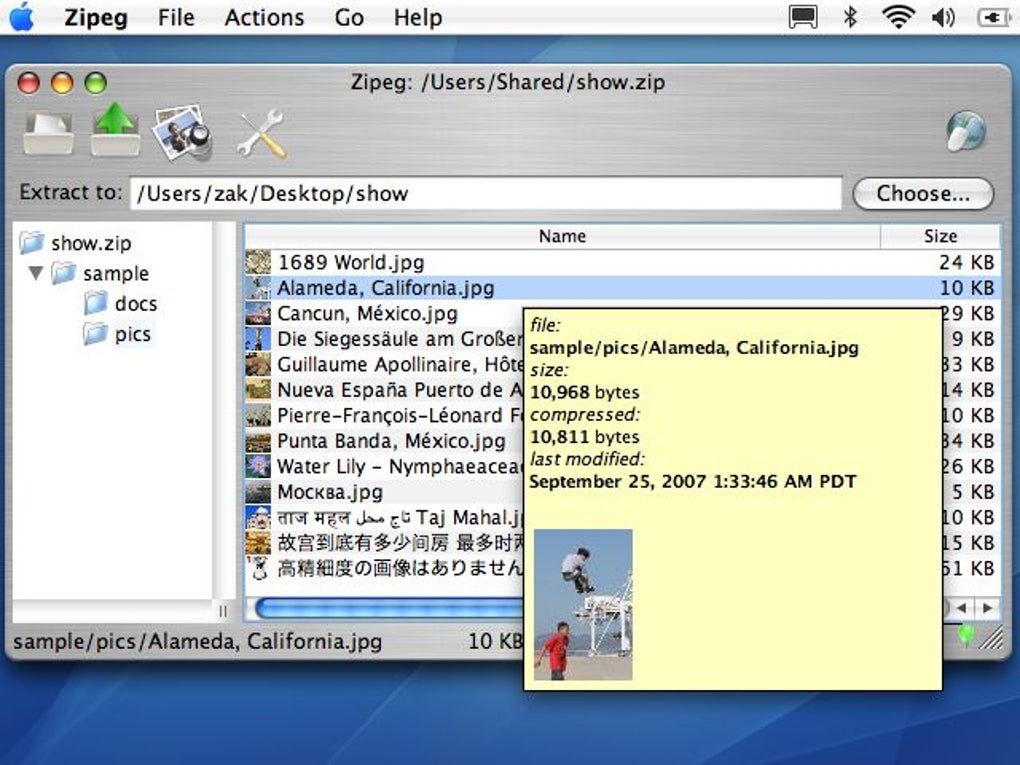
Zipeg is a lightweight, free utility that lets you browse, preview, and extract a massive range of archive formats without the hassle of registration or hidden fees. Designed with photographers, designers, and anyone who deals with large batches of images in mind, Zipeg’s standout feature is its instant thumbnail preview. This means you can see exactly what’s inside a ZIP, RAR, 7z, or even a comic‑book archive (CBR/CBZ) before you spend time extracting it.
The preview window displays full‑size thumbnails for images, making it easy to verify content, avoid duplicate downloads, or spot suspicious files at a glance. Beyond images, Zipeg supports more than twenty archive types, including classic formats like TAR, GZ, and ISO, as well as newer containers such as WAR, EAR, and even CHM. The interface is clean, drag‑and‑drop friendly, and runs quietly in the background while you continue working on other tasks.
Because it’s built on Java, Zipeg works on both Windows and macOS platforms, and updates are automatically checked to keep the program secure and compatible with the latest archive standards. Whether you’re unpacking a photographer’s RAW bundle, extracting a software package, or simply unzipping a collection of e‑books, Zipeg offers a fast, reliable, and completely free solution.
Key Features of Zipeg
- Instant thumbnail preview for image‑rich archives (JPEG, PNG, GIF, BMP).
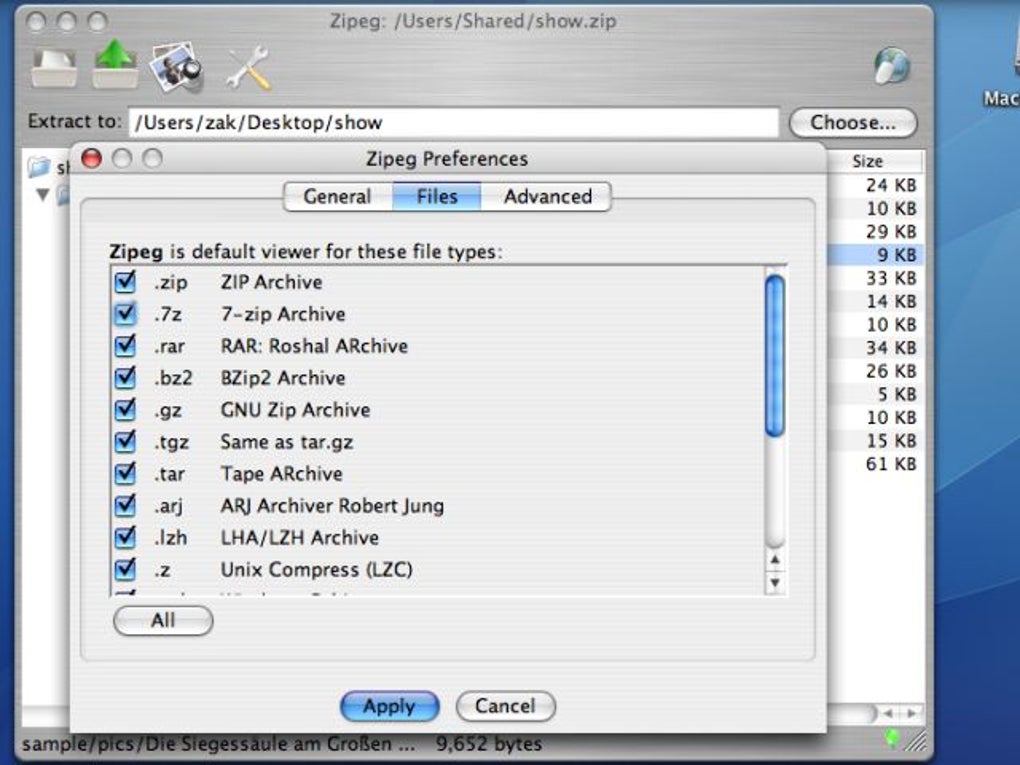
- Support for over 20 archive formats: ZIP, RAR, 7z, TAR, GZ, TGZ, BZIP2, CPIO, RPM, ISO, CHM, CBR, CBZ, WAR, EAR, ARJ, LHA/LZH, Z, and more.
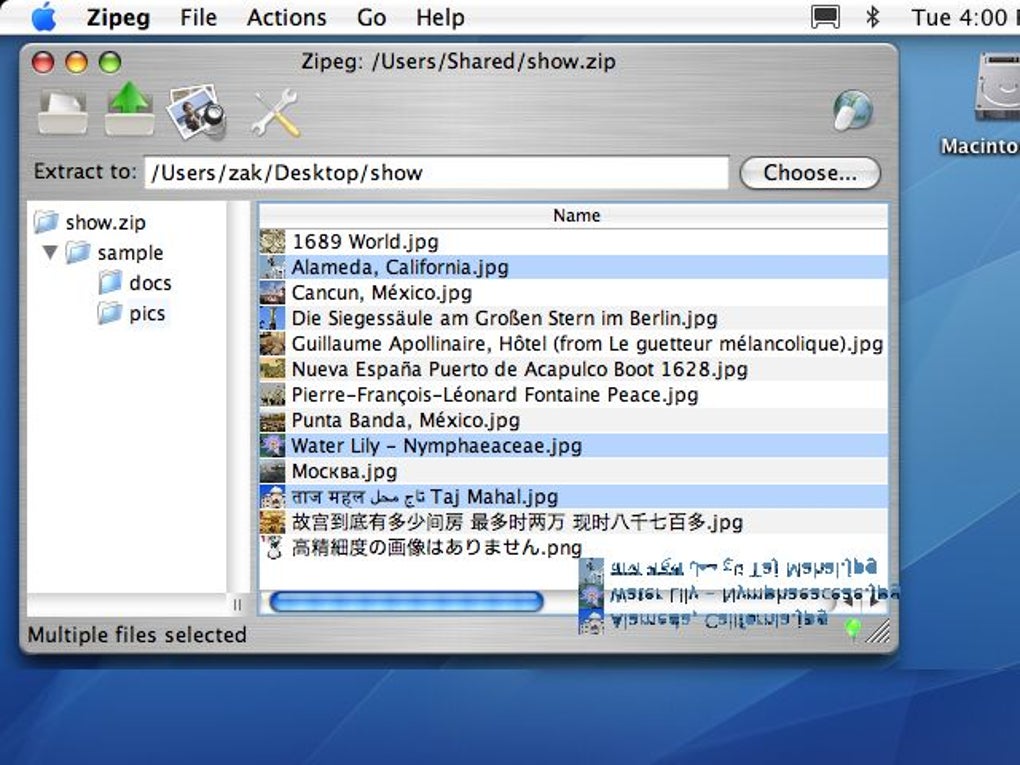
- Drag‑and‑drop extraction – simply drop an archive onto the Zipeg window to start unpacking.
- Background processing – continue working while Zipeg extracts files silently.
- Automatic update checker ensures you always have the latest security patches.
- Cross‑platform compatibility: runs on Windows (XP‑10) and macOS (Intel and Apple Silicon).
- Zero‑registration, fully free – no hidden costs or trial periods.
- Sortable file view by name, size, or date for quick navigation.
- Secure handling of nested “matryoshka” archives – Zipeg can open archives inside archives without manual extraction.
- Lightweight Java‑based engine with minimal system resource consumption.
How to Install and Use Zipeg
Installing Zipeg is straightforward, whether you’re on Windows or macOS. First, download the installer from the official Zipeg website. The file is typically named Zipeg‑Setup.exe for Windows or Zipeg‑Installer.dmg for macOS.
Run the installer and follow the on‑screen prompts – the wizard will ask you to choose an installation folder (the default location works for most users) and whether you’d like a desktop shortcut. Because Zipeg is Java‑based, the installer will also verify that you have a compatible Java Runtime Environment (JRE 1.5 or later). If the JRE is missing, the installer offers to download and install it automatically.
Once installed, launch Zipeg from the Start menu or Applications folder. The main window presents a clean pane with a large “Drop files here” area. To extract an archive, simply drag the file onto this area.
Zipeg immediately reads the archive’s directory structure and displays thumbnails for any image files it contains. You can double‑click a thumbnail to view a larger preview or select multiple files and click the Extract button. Zipeg will ask you to choose a destination folder; you can also enable the “Extract to same folder as archive” option for faster workflow.
During extraction, a progress bar shows the status, and you can cancel at any time without affecting already extracted files.
Advanced users appreciate Zipeg’s ability to handle password‑protected archives. When you open a secured file, Zipeg prompts for the password in a secure dialog. The interface also respects file permissions on macOS, ensuring that resources such as “resource forks” are preserved when extracting from older Mac archives. For power users, the Preferences dialog (accessible via the gear icon) lets you customize thumbnail size, default extraction paths, and whether Zipeg should automatically check for updates on startup. Overall, the installation and daily usage experience is designed to be as frictionless as possible, letting you focus on the content rather than the tool.
System Compatibility, Pros and Cons
Zipeg runs on any modern Windows (XP, Vista, 7, 8, 10, 11) and macOS (10.9 Mavericks through macOS 14 Sonoma) system that supports Java 1.5 or newer. Because the core engine is Java, the application inherits Java’s cross‑platform stability, meaning you’ll get the same feature set regardless of operating system. Windows users benefit from native shell integration, allowing right‑click “Open with Zipeg” options in File Explorer. macOS users receive a native .app bundle that integrates with Finder, supporting drag‑and‑drop from the desktop or any folder. The software does not currently have a Linux native build, but Linux users can run the .jar file directly with a compatible JRE, though official support is limited.
Pros
- Free and completely without registration or ads.
- Rich thumbnail preview makes it ideal for image‑heavy archives.
- Broad format support eliminates the need for multiple extraction tools.
- Background extraction lets you multitask without interruption.
- Automatic update checks keep the app secure and up‑to‑date.
- Simple drag‑and‑drop interface reduces learning curve.
- Cross‑platform Java foundation ensures consistent performance.
Cons
- Requires Java Runtime Environment, which some users may consider an extra dependency.
- Thumbnail generation for very large archives can be slow on older machines.
- No built‑in archive creation – Zipeg only extracts and previews.
- Limited customization of the UI beyond basic preferences.
- Linux support is unofficial and may require manual configuration.
Frequently Asked Questions
Is Zipeg really free, or are there hidden fees?
Zipeg is completely free to download and use. There are no registration requirements, trial periods, or hidden in‑app purchases. All features, including the preview function and background extraction, are available to every user.
Do I need an internet connection to extract archives?
No. Zipeg works offline once installed. An internet connection is only needed for the optional automatic update check, which you can disable in Preferences.
Can Zipeg handle password‑protected ZIP or RAR files?
Yes. When you open a protected archive, Zipeg prompts you for the password in a secure dialog. The entered password is not stored, ensuring your data remains private.
Is Zipeg safe to use with suspicious or unknown files?
Zipeg’s preview feature allows you to inspect the contents of an archive before extracting, which helps you avoid running potentially harmful files. However, always keep your anti‑virus software active for an extra layer of protection.
Can I extract archives on macOS without Java installed?
Zipeg requires a Java Runtime Environment (JRE 1.5 or newer). The installer will offer to download and install the JRE automatically if it is not already present on your macOS system.
In summary, Zipeg offers a fast, secure, and completely free way to preview and extract a wide variety of archive formats, with special attention to image files. Its intuitive drag‑and‑drop workflow and background processing make it an excellent choice for both casual users and professionals who need to manage large collections of compressed media. Ready to simplify your archive handling?
Download Zipeg now, extract with confidence, and enjoy hassle‑free preview of every file you open.
Pros: Free, powerful preview, supports many formats, background extraction.
Cons: Requires Java, slower thumbnails on old hardware, no archive creation.







